
Agents
Build conversational AI assistants on top of your financial data, with their own knowledge base and tools.
Agents are conversational AI assistants built on top of your Securo data. You can ask an agent about your spending, have it categorize transactions, generate charts, or answer questions using documents you've given it. Each agent has its own model, knowledge base, and set of tools.
Enabling Agents
Agents are an optional feature and are turned off by default. To use them, your Securo instance needs:
AGENTS_ENABLED=trueset in the backend environment- The agents services running:
docker compose --profile agents up -d
Once enabled, an Agents entry appears in the sidebar.
Running Agents Without Docker
COMPOSE_PROFILES=agents only tells Docker Compose to start the extra mcp-server container. On a bare-metal install, set AGENTS_ENABLED=true alone and run the built-in MCP server next to the API process:
# alongside the API/worker/beat processes
uvicorn mcp_server.main:app --host 127.0.0.1 --port 8765AGENTS_ENABLED=true
AGENTS_BUILTIN_MCP_URL=http://127.0.0.1:8765/mcpWithout that server the agents still chat, but they have no tools and cannot read your data. The backend log says which MCP server it failed to reach.
LLM Connections
An agent needs a connection to a language model provider. Open Manage connections and click Add connection. Securo supports:
| Provider | What you need |
|---|---|
| Ollama | A local Ollama server — optionally its base URL |
| OpenAI | An API key |
| Anthropic | An API key |
| OpenAI-compatible | A base URL, for LM Studio, vLLM, Groq, Together, and similar |
Each connection has a name, an optional default model, and a Test button to verify it works. You can mark one connection as the default for new agents.
Your model provider credentials stay on your own Securo instance. With a local provider like Ollama or LM Studio, your financial data never leaves your machine.
Running a Local Model
To use a local provider you first need a model server running on your machine. Both options below are free and run fully offline — follow their own guides to install them and start the server:
- Ollama — a lightweight model server you control from the command line. Install it, pull a model (for example
ollama pull llama3.1:8b), and it serves an API on port11434. Setup guide: Ollama Quickstart. - LM Studio — a desktop app with a built-in model browser and a one-click local server, which listens on port
1234. Setup guide: Run LM Studio as a Local Server.
Once the server is running, add a connection in Securo. For Ollama, choose the Ollama provider. For LM Studio, choose the OpenAI-compatible provider and enter just the host and port — for example http://localhost:1234 — Securo appends the /v1 path automatically.
If Securo runs in Docker, localhost inside the container is not your host machine. On macOS and Windows, point the connection at http://host.docker.internal:11434 for Ollama or http://host.docker.internal:1234 for LM Studio; on Linux, use your host's LAN IP address.
Creating an Agent
Click New agent and configure:
- Name and Description
- System prompt (optional): Instructions that shape how the agent behaves
- Connection: Which LLM connection to use
- Model (optional): Overrides the connection's default model
- Temperature: How creative the responses are (0–2)
- Auto-inject account context: Prepends a short primer with your name, currency, today's date, and account list to every conversation
- Default agent: Makes this the agent used by the global chat
Starting From a Template
Don't want a blank form? Start from one of the built-in templates: a savings advisor, a monthly review, a budget watch, and a recurring audit. Each creates in one click and stays entirely yours to rename, re-prompt and re-tool from there.
Knowledge Base
Each agent can have its own knowledge base. On the agent's Knowledge tab, upload PDF, Markdown, or text files — a tax guide, an investment policy, your own notes. The agent searches these documents to ground its answers. You can pin a document so it's always included in context.
Tools
On the Tools tab, you choose which actions the agent is allowed to take. Tools let an agent query your transactions, accounts, budgets, and goals, and even create or update records on your behalf. New agents start with all tools disabled — enable only the ones you want each agent to use.
Rules are covered too: an agent (or an external MCP client such as Claude Desktop) can list your rules, preview what a rule would change before it exists, and propose a rule to create, update or delete. A proposal is never applied on its own; it shows up as a card in the chat for you to confirm. The same propose-then-confirm pattern covers a growing set of writes: edits to a transaction's notes and tags, an update to an existing transaction (description, amount, date, category, account, payee, status and the exchange rate, shown next to the current values; on a transfer the other leg follows, and category splits stay as they are), creating category groups, updating goals and budgets, deleting a budget, creating and updating manual accounts, creating, updating and merging payees, and the transfer-pair tools (list counterpart candidates, propose a link, propose an unlink). The built-in MCP server speaks the 2026-07-28 Streamable HTTP transport alongside the older era, so clients connect on whichever they support.
Transaction tools return the parts of a transaction split across categories, totals by category count each part in its own category, and an agent can propose a new transaction or recurring bill already split. Proposals to set a single category leave a split transaction alone.
Two read-only tools look ahead: get_recurring_subscriptions finds recurring expenses, subscriptions and periodic income in your history, and get_cashflow_forecast simulates your balance day by day over the next 7 to 365 days (90 by default), with how long your money lasts and the risk of running short. The same data is on the API at /api/forecast/recurring and /api/forecast/cashflow. Transactions that already come from one of your recurring schedules aren't detected again.
Chatting with an Agent
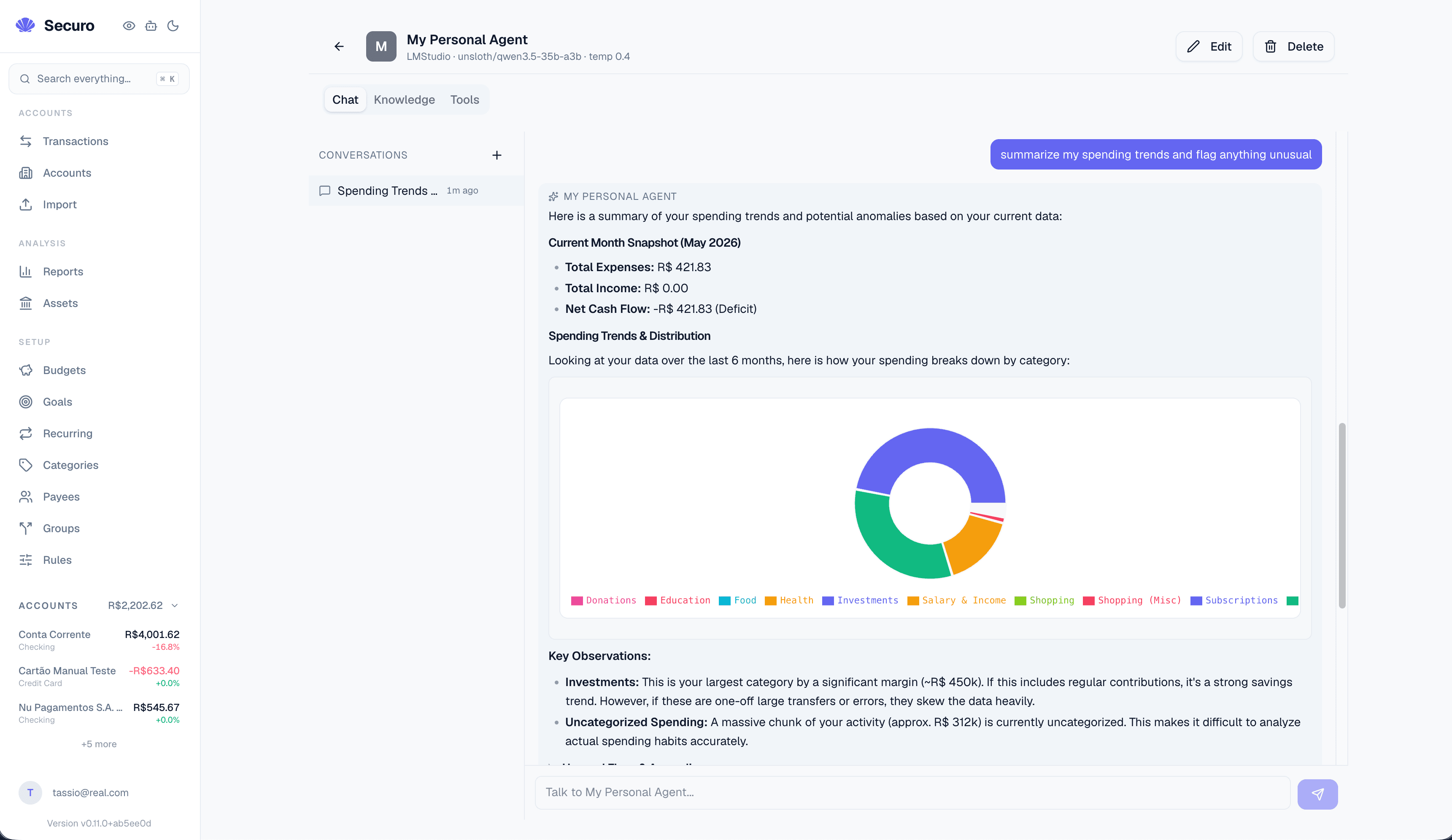
Open an agent and use the Chat tab to talk to it. Conversations are multi-turn and stream responses as they're generated. The agent is aware of the page you're on, so you can ask about "this list" or "this transaction" and it understands the context. Past conversations are saved and listed in the sidebar.
A message can be up to 4,000 characters. Since every message spends tokens with your LLM provider, the chat is limited per client address to AGENTS_CHAT_RATE_LIMIT_PER_MINUTE messages a minute (default 30; a turn that runs several tools is still one message). Lower it, to 5 for example, on a public demo, or set 0 to turn the limit off. The limit is counted in Redis, and the client address is read through TRUSTED_PROXY_HOPS (see Docker), so behind a proxy set that too, or every visitor shares one limit.
The Global Chat
Press ⌘J (or Ctrl+J) anywhere in Securo to open the global chat — a slide-over panel powered by your default agent. It's the fastest way to ask a quick question without leaving the page you're on. You can switch agents, start a new conversation, or browse recent ones from the panel header.