
Invoices
Track what your clients owe and what you owe suppliers, issue invoices as documents, and follow every one until the money lands.
Invoices give a workspace a receivables side: what you have charged, what has been paid, and what is late. Draft an invoice from line items or just record an amount, issue it to assign a number, follow it through partly paid, paid, overdue, void or uncollectible, and settle it against the real transaction that paid it so the ledger and the bank never disagree. Bills from suppliers work the same way in the other direction.
Availability
Invoices belong to workspaces created as Business. The workspace type is chosen once, at creation, and cannot be changed later; a personal workspace does not show the section at all. See Workspaces.
Two Ways to Use It
Open Invoices → Invoice settings and pick a Mode. It is a starting point, not a lock: it fills in three behaviours you can still change one by one.
| Mode | For | What it sets |
|---|---|---|
| Track payments (default) | You invoice somewhere else and only want to follow who owes you and whether it arrived | New invoices start Open straight away, no document is required, tax fields are hidden |
| Issue documents | Securo writes the invoice your client receives | New invoices start as Drafts, line items are expected, tax fields are available |
Receivable and Payable
The page has two tabs. Receivable is what clients owe you: each invoice has a client, a due date, an amount or a list of line items. Payable is what you owe suppliers: a bill with a supplier and a due date, so nothing is paid late or twice. Everything below applies to both; a payable is simply settled by money going out rather than coming in.
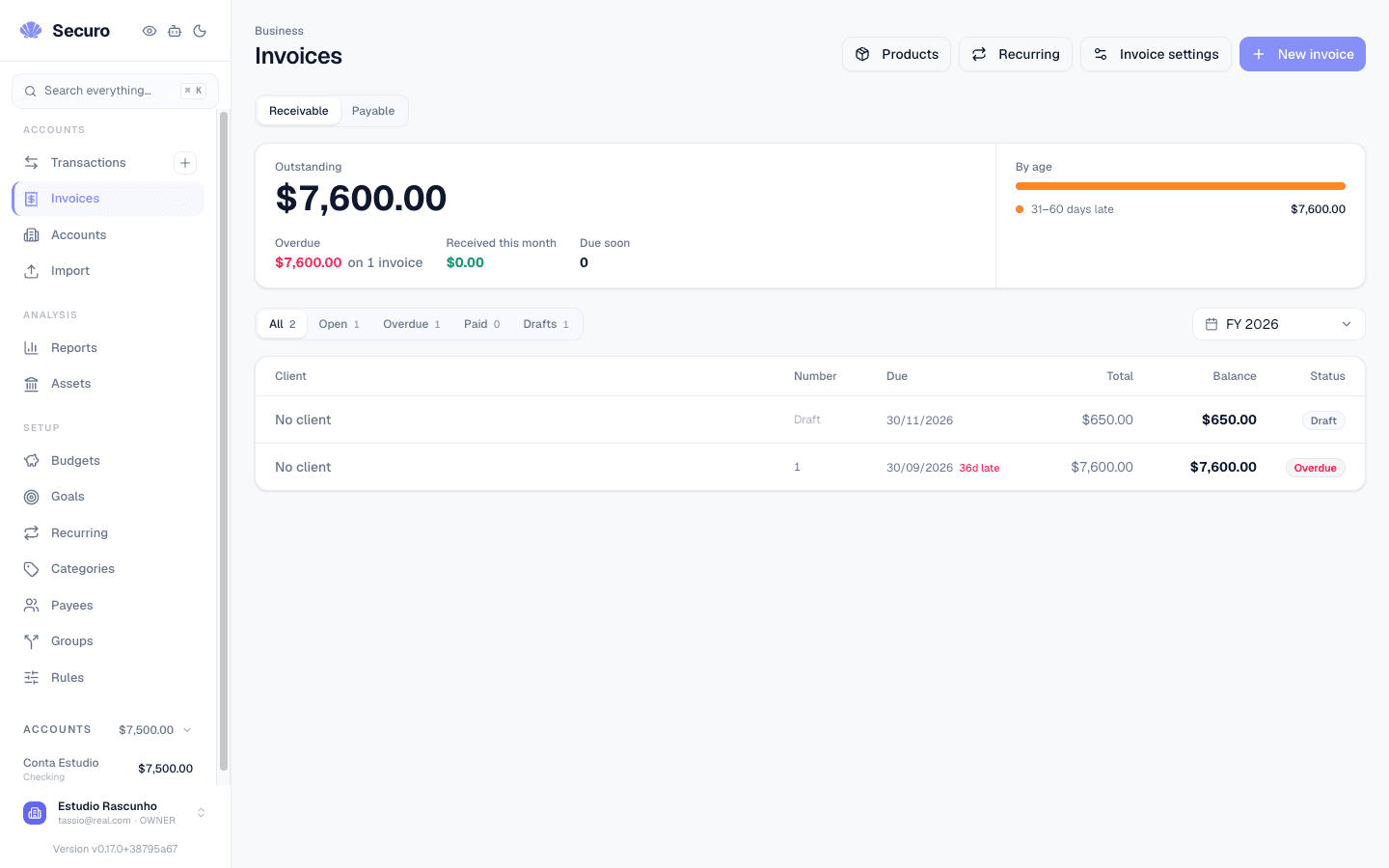
The summary at the top answers the questions that matter: Outstanding, Overdue (and on how many invoices), Received this month, Due soon, and an aging breakdown (Not due yet, 1 to 30 days late, 31 to 60, 61 to 90, 90+). The list can be filtered to Open, Overdue, Paid or Drafts, and scoped to a fiscal year.
Creating an Invoice
- Click New invoice (or New bill on the Payable tab)
- Pick the client from your payees. Contact details and tax IDs stored on the payee flow onto the document
- Set the due date. Securo suggests one from the payment terms in your settings
- Either type the amount, or add line items: description, quantity, unit (hours, days, pieces), unit price and an optional tax rate. Line items are what the client sees they are paying for
- Add notes if you want them on the document
- Save as draft or Issue
Lifecycle
| State | Meaning |
|---|---|
| Draft | Can still be edited or deleted. Has no number yet |
| Open | Issued and waiting for money. Issuing assigns the next number in the sequence |
| Partly paid | Some money has been linked, a balance remains |
| Paid | The linked payments cover the total |
| Overdue | Open past its due date |
| Void | Cancelled. An issued invoice is never deleted, only voided, so numbering stays continuous |
| Uncollectible | Written off. The balance stops counting as outstanding |
Partly paid, Paid and Overdue are derived from the payments and the calendar, never set by hand. Mark as paid opens the same dialog as Link payment: you pick the transaction that paid it. Reopen takes a written-off invoice back to open; a void one stays void.
Payments
An invoice is settled by the transaction that actually paid it, never by a number typed into a box. The Payments section on the invoice lists each linked transaction with its date and the amount applied, and says whether it was linked manually or matched automatically.
- Link payment lets you pick an incoming transaction in the invoice's currency and apply as much of it as fits, or a specific amount for a part payment. The same transaction can settle several invoices
- Unlink removes the link and reopens the balance. The transaction itself is untouched
- Most links you will never make by hand: payment matching watches every incoming transaction and binds it to the invoice it settles, or asks you when it is not sure. A pending question shows up on the invoice itself
The Document and the PDF
An issued invoice renders as a document with your business block, the client block, line items, payment details and a footer note, and can be downloaded as a PDF. Everything on it comes from a snapshot frozen when the invoice is issued: change your logo or address later and invoices already sent keep what they were sent with, and a payment received afterwards does not alter the page the client holds. Download the PDF before and after a payment and you get the same file.
Share link creates a single, revocable URL that shows the document and offers the PDF to whoever opens it, with no sign-in required. Revoke link turns it off; the invoice stays yours.
The Documents tab keeps the paperwork that belongs to an invoice: the bill, the fiscal document, the receipt, a contract. Attach files as they arrive. For a bill you received rather than issued, attach the supplier's document and it is shown exactly as it came, marked as a received document.
Recurring Invoices
An agreement that bills every period, a retainer, a plan, anything subscription-shaped, can be set up as a recurring invoice: the agreement emits one invoice per period on schedule, with the agreed amount and a due date.
- The price is a dated term. The agreement keeps a price table, and a change applies from the first period starting on or after its date. Nothing is prorated, and old invoices keep the price they were issued with
- The agreement page shows what it bills per month, what is still to come, and every period written so far
- Periods are generated automatically on the schedule; Generate pending creates the ones that are due now
- An invoice you wrote by hand can be linked to the period it belongs to, so the period counts as written
Installments
"3x", or "half upfront, half on delivery": an invoice can carry the installment schedule the client agreed to, as rows that add up to the total.
The invoice's due date becomes the last installment, so every list, filter and aging bucket keeps its meaning. Settled money covers the schedule first to last: what arrives always settles the oldest open installment first.
Deductions
Sometimes debt closes without money arriving: tax withheld by the client, a gateway fee, an exchange difference. A deduction records that against an invoice. The balance and the state move (a fully covered invoice reads as paid), but what was received does not change, so the ledger and the bank still agree.
Product and Service Catalog
The Catalog holds your products and services with their own prices, so an invoice line is picked instead of typed.
It is optional at every level: a workspace with no catalog writes lines exactly as before, an invoice can mix catalog lines and free lines, and a price can still be changed on the spot. Catalog prices are dated too, so a price change applies going forward without rewriting invoices already issued.
Invoice Settings
Everything about how invoicing behaves and how the document looks lives under Invoice settings on the Invoices page:
- How invoicing behaves: the mode above, the number prefix (
AURgivesAUR1,AUR2, ...), and payment terms in days, used to suggest due dates - Your business details: the name and legal name shown as the sender, address, and your tax IDs. Applies to invoices issued from now on
- How the document looks: a logo, an accent colour, the payment details the client needs (a Pix key, an IBAN, an account number), a footer note, and the document labels if you want the document to call a field something else
Tips
- Keep one payee per client and put their tax ID on it once; every invoice picks it up
- In Issue documents mode, a draft is the place to get things right. Once the client has the document, void it and issue a new one rather than editing history
- The aging buckets are the fastest way to see who to chase: anything at 31 to 60 days late has been overdue for a month