
Dashboard
The dashboard is your financial command center, showing a monthly snapshot of income, expenses, savings, and spending trends.
The dashboard is the first screen you see after logging in. It provides a monthly overview of your financial health, with widgets that update as you add and categorize transactions.
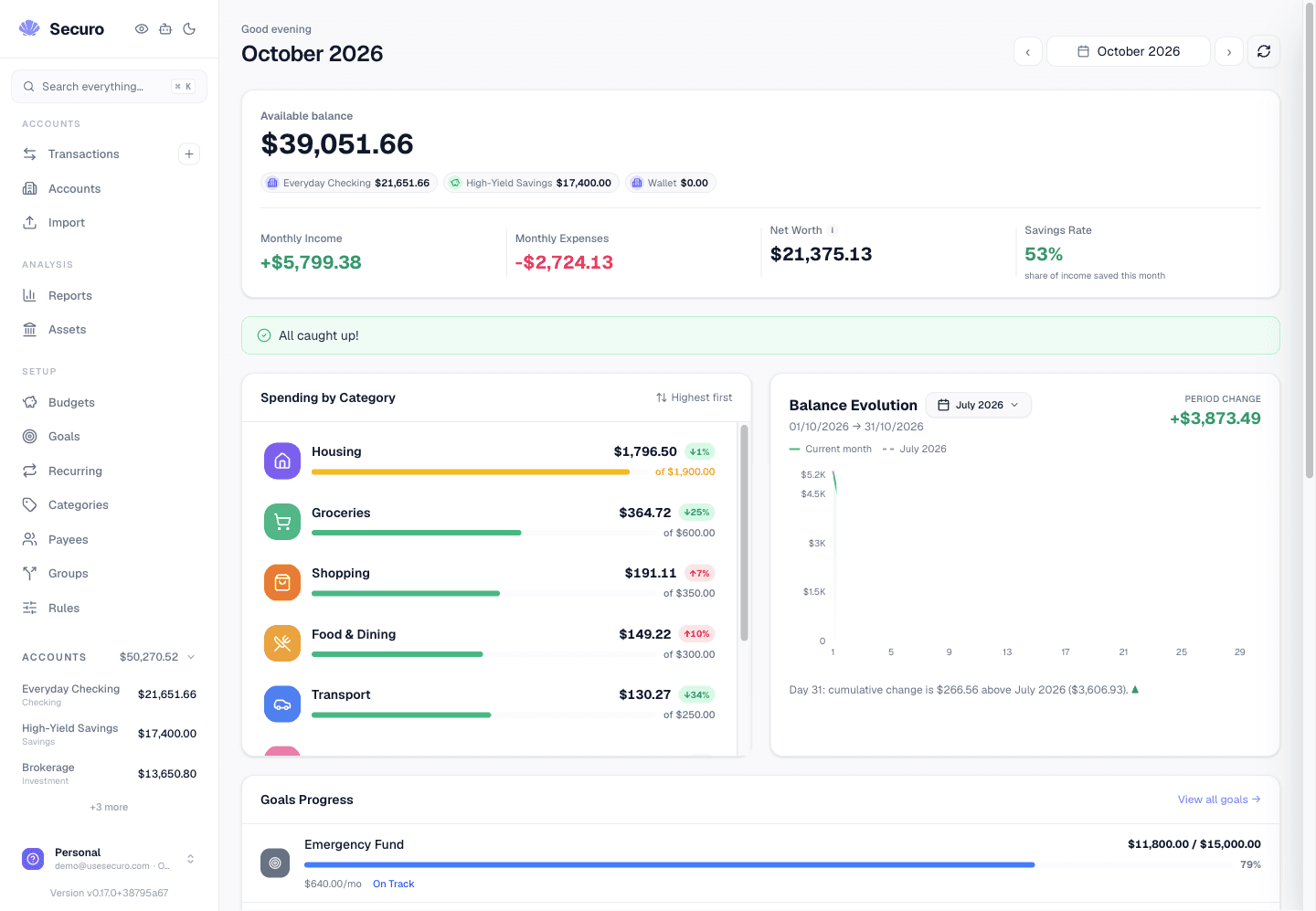
Monthly Overview
At the top of the dashboard you'll see the current month and navigation arrows to browse previous months. The hero card leads with Available balance, the answer to "what can I spend", broken down per account, with the figures around it:
- Net worth: Accounts plus tracked assets, minus debts such as loan balances, in your primary currency. Its breakdown separates Cash from Investment accounts: a brokerage account counts in net worth but is never shown as money available to spend
- Monthly Income and Monthly Expenses: What came in and went out this month
- Savings Rate: The percentage of income you saved this month
- Invested assets: The current value of your tracked assets (shown only when you have assets)
- Loans: The outstanding debt on your loan accounts, as its own row rather than folded into the available balance
A refresh button on the dashboard (and on the accounts, rules and categories pages) re-pulls the data for when something changed somewhere else.
Below the summary, the dashboard shows a spending forecast: based on your current pace, it estimates how much you'll spend by the end of the month.
Uncategorized Transactions
If you have transactions that haven't been assigned a category yet, a prominent badge appears showing the count and total amount. Clicking Categorize now takes you directly to the transaction list filtered to uncategorized items so you can quickly sort them.
This is important because uncategorized transactions won't appear correctly in your budget tracking or spending reports.
Spending by Category
This widget shows a horizontal bar chart of your top spending categories for the month. Each bar displays:
- The category name and icon
- The amount spent
- A percentage change compared to the previous month
- A progress bar showing spending relative to your budget (if one is set)
This gives you an instant view of where your money is going without navigating to the full reports section.
A transaction split across categories adds only its part to each bar. Click a category to list what makes up its total: a split transaction appears there with the part that belongs to the category and a part of note with its full amount, so the list adds up to the bar.
Balance Evolution
The Balance Evolution chart shows how your total balance changed day-by-day throughout the month. It's a line chart that helps you spot:
- Large one-time expenses (sudden drops)
- Income deposits (sharp increases)
- Overall spending trends across the month
Pick any earlier month to compare against: the current month is then read against that month's median line and its middle-50% band, so "is this month normal?" is answered on the chart itself. For days still ahead, the line continues with projected points derived from your recurring transactions and, in a Business workspace, from the unpaid balance of open invoices, kept visually distinct from settled money. Hover over any point to see the exact balance for that day. When an exchange rate is missing, the chart says the total is incomplete instead of mixing currencies silently.
Goals Progress
When you have active goals, a widget shows your top three with their progress bars, so the things you're saving for stay in sight without leaving the dashboard.
Period Transactions
At the bottom, you'll find the transactions of the selected month, as a list or as a calendar: a month grid showing either the daily activity or the running balance, the same view described under Transactions. Click any transaction to view its full details or edit it.
Account Balances
The sidebar displays your accounts with their current balances. Accounts in foreign currencies show both the original currency amount and the converted value in your primary currency. A percentage change indicator shows how each account balance has changed recently.
Customizing the Dashboard
Every section above is a widget, and you decide which ones show and where. Click Customize dashboard to enter edit mode, then:
- Move a widget by dragging its handle, or from the keyboard
- Resize it by dragging its right edge to a third, half, two thirds or the full width of the row. When two widgets share a row, the edge between them works as a divider: one grows as the other shrinks
- Remove it, or add one from the Library
- Restore default to go back to the original layout
Changes are saved as you go, per user and per workspace, so each member arranges their own view. A widget that isn't on the dashboard loads no data.
Besides the default sections, the library offers:
- Month's spending: this month's spending against your budgets, and what's left per day to stay within them
- Spending breakdown: where the month's money went, by category
- Month result: income minus spending this month, compared with last month
- Upcoming: recurring transactions due in the next 30 days
- Credit cards: what your cards owe, and the balance left once they're paid
- Flagged transactions: the transactions you flagged for later, overdue reminders first, with the overdue and due-this-week counts
- Ask your agent: a question box that opens the chat with your default agent. Offered only when AI agents are on
A Business workspace also gets widgets from invoices: Receivables, Payables, Receivables by age, Invoices due soon and Recurring revenue. The library lists every widget and marks the ones the current workspace can't use, with the reason.
Themes
The Themes tab of the library (also under Appearance in the user menu) changes how Securo looks: Securo's own theme plus Ocean, Forest, Sunset, Graphite, Midnight, Terminal, Nebula and High contrast, each in light and dark. Charts follow the theme you pick. The theme is saved per user, and plugins can add more.