
Groups
Split shared expenses with people, projects, or cost centers and track who owes whom.
Groups let you split shared expenses — a dinner with friends, a trip, a shared apartment, or a project budget — and keep track of who owes whom. When you split a transaction through a group, Securo records each person's share and calculates balances automatically.
Creating a Group
Go to Groups in the sidebar and click + Add group. Fill in:
- Name: What the group is for (e.g., "Apartment", "Lisbon Trip")
- Type: The kind of group, which drives labels and reports
- Default currency: The currency used for balances
- Notes (optional): Any extra context
Groups can be one of these types:
| Type | Use for |
|---|---|
| Social | Friends, family, roommates |
| Cost center | Internal departments or teams |
| Project | A specific project or initiative |
| Client | Client-related expenses |
| Other | Anything else |
Members
A group's members are the people who share its expenses. Open a group and click Add member to add one. You can either:
- Link a Securo user — select an existing user from the directory. Their name and email fill in automatically, and the group is shared with them.
- Add a non-user — just enter a name, and optionally an email. Useful for people who don't have a Securo account.
Splitting a Transaction
To split an expense, open the Add or Edit transaction dialog and check Split this transaction. Then:
- Choose the group
- Choose how to split by:
- Equal — the amount is divided evenly among the selected members
- Exact amounts — you enter each member's exact share
- Percentages — you enter each member's percentage
- Select which members are part of the split
For exact amounts and percentages, Securo shows a running total so you can confirm the shares add up before saving.
Sharing a transaction with a group and splitting it across categories are separate things, and a transaction holds one or the other: undo one before using the other.
Adding Multiple Transactions at Once
To split many transactions the same way, select them on the Transactions page and choose Add to group. Pick the group and a split rule — Equal or Percentages — to apply to all of them. Transfers and already-split transactions are skipped automatically.
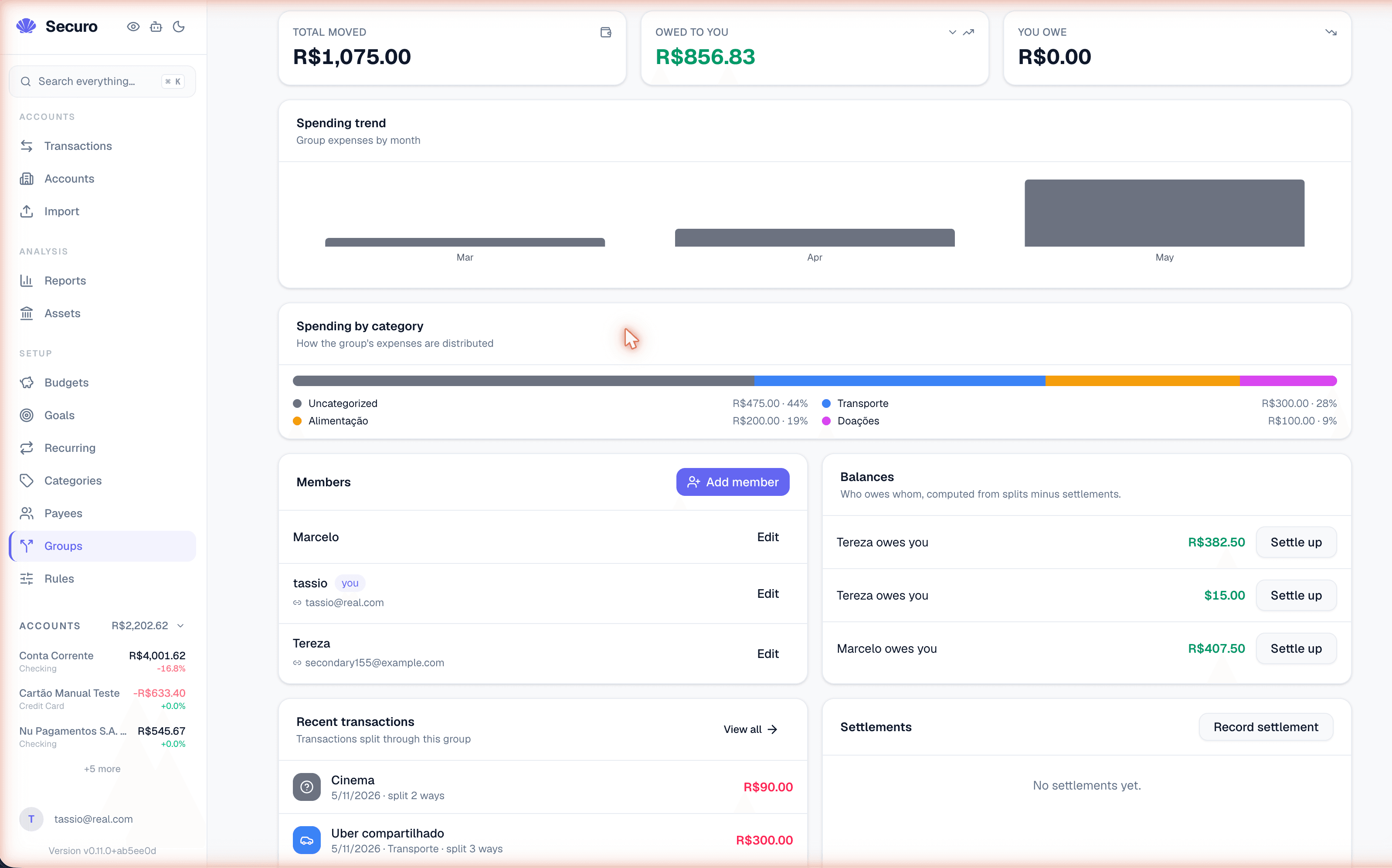
The Group Page
Opening a group shows everything in one place:
- Total moved, Owed to you, and You owe summary cards
- Spending trend and Spending by category charts
- The Members list
- Balances — who owes whom, computed as one ledger from the payer of each expense minus settlements, so both sides of a split always see the same numbers
- Recent transactions split through the group
- Settlements that have been recorded
Settling Up
When someone pays back their share, record it as a settlement. Click Settle up on a balance line — or Record settlement — and confirm who paid whom, the amount, the date, and optional notes. The balances update immediately.
If you're the one paying, you can tick Also record as a transaction in my account to create a matching transaction in one of your accounts, linked to the settlement.
Shared Transactions
When you split a transaction, members who are linked Securo users see it in their own transaction list — but only their share, marked as Shared and labeled with who paid. These rows are read-only and don't count toward the member's personal income or expenses, only toward the group balances.
Archiving Groups
When a group is no longer active, edit it and tick Archived. Archived groups are hidden from the default view — use the Active, Archived, and All filters at the top of the Groups page to switch between them. There is a search box next to those filters, and both the search and the status filter live in the page URL, so a reload or the back button keeps what you were looking at. You can un-archive a group at any time, or delete it entirely.