
Budgets
Set monthly spending limits per category and track your progress throughout the month.
Budgets help you control spending by setting a monthly limit for each category. As you spend, Securo tracks how much of your budget is used and how much remains, giving you a clear view of whether you're on track.
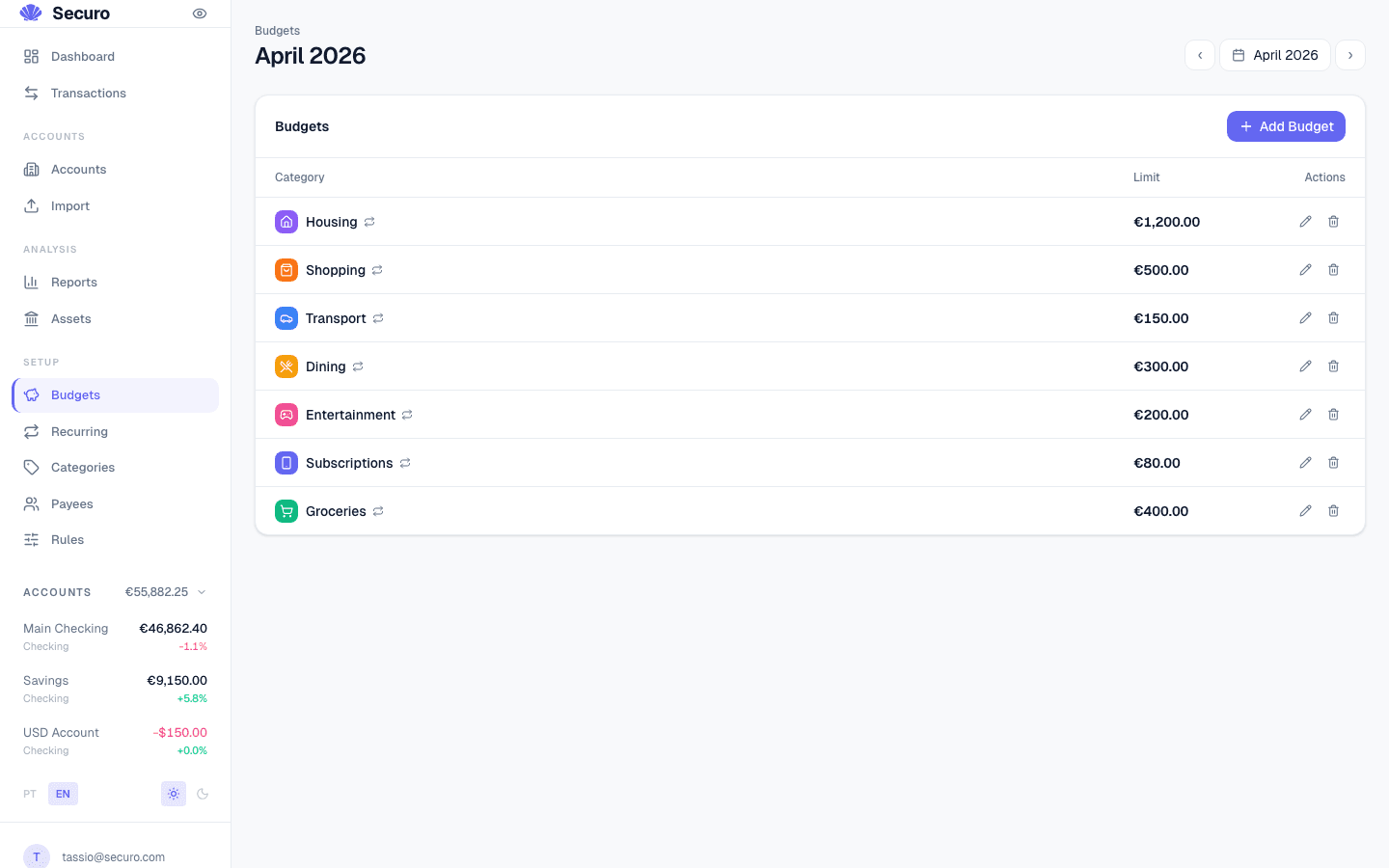
How Budgets Work
A budget in Securo is simple: you pick a category and set a maximum amount you want to spend on it per month. Securo then compares your actual spending in that category against the limit.
For example, if you budget R$500 for Groceries and you've spent R$320 so far this month, the budget view shows you have R$180 remaining.
A transaction split across categories counts toward each budget with only the part in that category: R$60 of groceries inside a R$150 supermarket receipt adds R$60 to the Groceries budget.
Setting Budgets
The Budgets page lists every category of the workspace, grouped by category group, for the month you pick with the arrows (or the month picker) at the top. Each category has its limit right on the row:
- Navigate to Budgets in the sidebar
- Type a limit next to each category you want to budget. Under the name, usually X shows what you typically spend there, and a small chart shows the last few months
- Click the repeat icon to keep that limit every month, or leave it off for a limit that applies to this month only
- Click Save in the bar at the bottom, which also shows the month's total budget. Cancel throws away the edits
Hidden categories are listed too, marked Hidden, so a budget on one of them is never lost.
Tracking Spending
Each row shows the spending of the month next to its limit, with a progress bar of how much of the budget is used. Spending includes pending and projected transactions, so a bill you know is coming already counts. When you exceed a budget, the bar turns red. Refunds count back: money coming into a category reduces what that category has spent.
Click a category's name to open the side panel with the transactions behind its spending for that month.
Suggest From History
Suggest from history proposes limits based on your average monthly spending over the last 3, 6 or 12 months. Each suggestion shows what was spent in the period; tick the ones you want, adjust the amounts, choose whether they repeat every month, and click Create budgets.
Copy a Previous Month
Copy previous month, in the page header (and in an empty month), starts the month from the budgets of another one:
- Pick the Source month
- Under Existing budgets, choose whether to replace the ones this month already has with the source amounts, or keep them and copy only the categories that are missing
- Optionally set an Adjustment (%), between -100 and 1000: 5 adds 5%, -10 takes 10% off
- Check the preview, which shows how many categories and what total will be copied, and click Copy budgets
The copy takes what the source month actually had, including the limits that repeat every month.
Rollover, Surplus and Forecasting
Through the API, budgets can also be read as a surplus or overspend per category at the end of a month, and forecast across the coming months. The built-in MCP server can propose updates to budgets and delete one.
Tips for Effective Budgeting
- Start with your biggest categories: Budget for the areas where you spend the most first (housing, food, transportation)
- Review monthly: At the end of each month, check which budgets were too tight or too loose and adjust
- Use with rules: Set up categorization rules so transactions are automatically categorized, keeping your budget tracking accurate without manual work
- Check the dashboard: The dashboard's spending-by-category widget gives you a quick budget health check without navigating to the budgets page