
Payment Matching
Let incoming money bind itself to the invoice or recurring bill it settles, review what is uncertain, and tune the rules that decide.
Payment matching (reconciliation) is the part of bookkeeping that used to mean holding a bank statement next to a list of open invoices and working out which line paid which. Securo does that part: every transaction that arrives, whether it came from bank sync, an import, or was typed by hand, is checked against what you were expecting, linked when the evidence is clear, and queued for you when it is not.
Where It Applies
Matching compares money that moved against two kinds of expectation:
| Expectation | Available in | What a match does |
|---|---|---|
| Invoices (receivable and payable) | Business workspaces only | Records a payment against the invoice, in full or in part, and moves it toward Paid |
| Recurring bills | Every workspace | Links the transaction to the recurring schedule instead of leaving a generated placeholder next to the real payment |
Invoice matching is part of the Invoices module, which only a workspace created as Business has. A personal workspace still sees the Matching rules section under Rules, but only with the Recurring set. Matching runs the same way regardless of how a transaction got in: a payment you type in by hand settles an invoice exactly like a synced one.
What Happens When Money Arrives
Each incoming transaction is run through the matching rules in order. The first rule that matches decides, and there are only two outcomes:
- Link. The evidence is strong enough (same client, exact amount, inside the date window) and the payment is bound to the invoice on its own. The invoice shows Matched automatically next to the payment, with the name of the rule that agreed.
- Suggest. The match is plausible but not certain. Nothing is written; the pair goes to a queue for you to confirm or dismiss.
A transaction that already settles something is never matched again, so one payment cannot be spread over two debts. One payment can, however, settle several invoices at once (a client clearing three invoices in one transfer), and an invoice can be paid in parts: what is left stays open and the next payment is matched against the balance, not the original total.
Matching also runs the other way round. When you issue an invoice, Securo looks back at money that has already arrived from that client, for the customer who pays first and lets the paperwork follow. Looking back is a weaker claim than looking forward, so it requires a known client and refuses when two payments fit equally well.
A payment in a different currency from the invoice is never matched. Converting it would need a rate, a date to take it on, and somewhere to book the difference, so Securo leaves it for you to link by hand.
The Queue: Waiting for You
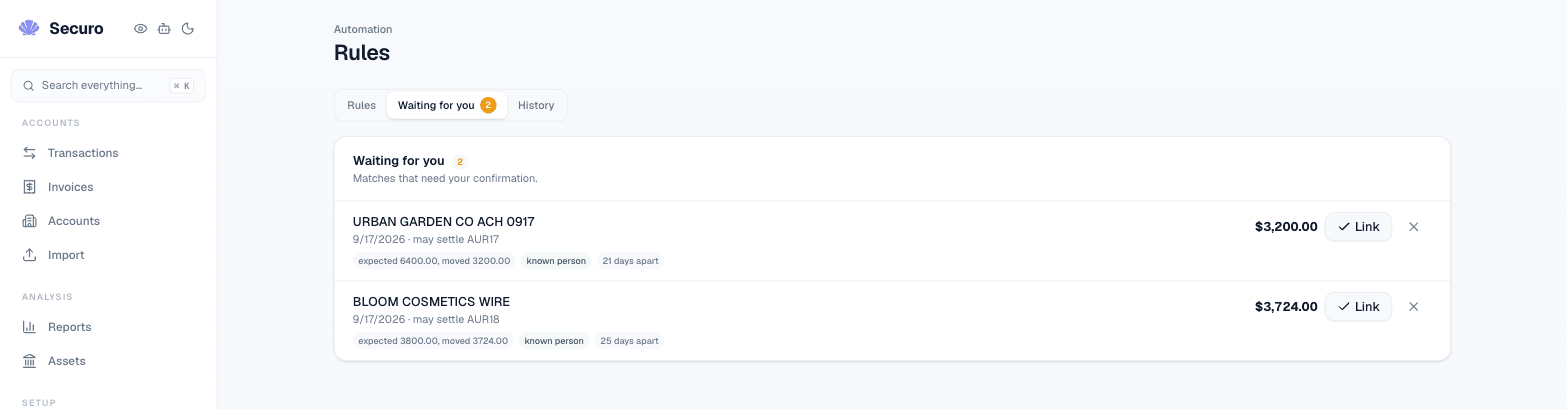
Everything the rules could not decide alone waits under Rules → Waiting for you. The tab shows a badge with the number of open questions, and each entry lays out the evidence rather than a score: expected 6400.00, moved 3200.00 · known person · 21 days apart.
- Link applies the payment. When the suggestion covers several invoices, they are accepted or declined as one thing, so a payment is never spread across two debts and left short on a third.
- Dismiss (the ✕) records that this pair is not a match. Securo remembers the answer and will not ask about the same pair again on the next sync.
You do not have to visit the queue to find out something is waiting. The same question appears on the invoice it concerns (A payment may settle this invoice, answerable right there) and on the transaction row, which carries a Question badge until it is answered.
History
Rules → History is a chronological record of what matching did, newest first: linked, offered, accepted, dismissed, expired, and unlinked. Each entry says which invoice or bill it concerned, the amount, and, first of all, whether it was done by you or by the rules. Unlinking a payment from an invoice is recorded here too, so a match that was made and then reversed is never confused with one that never happened.
Matching Rules
The thresholds that decide all of this are not buried in code. They are a list under Rules → Rules → Matching rules, one set for Invoices and one for Recurring, and every row is yours to read, reorder, edit, disable, or delete.
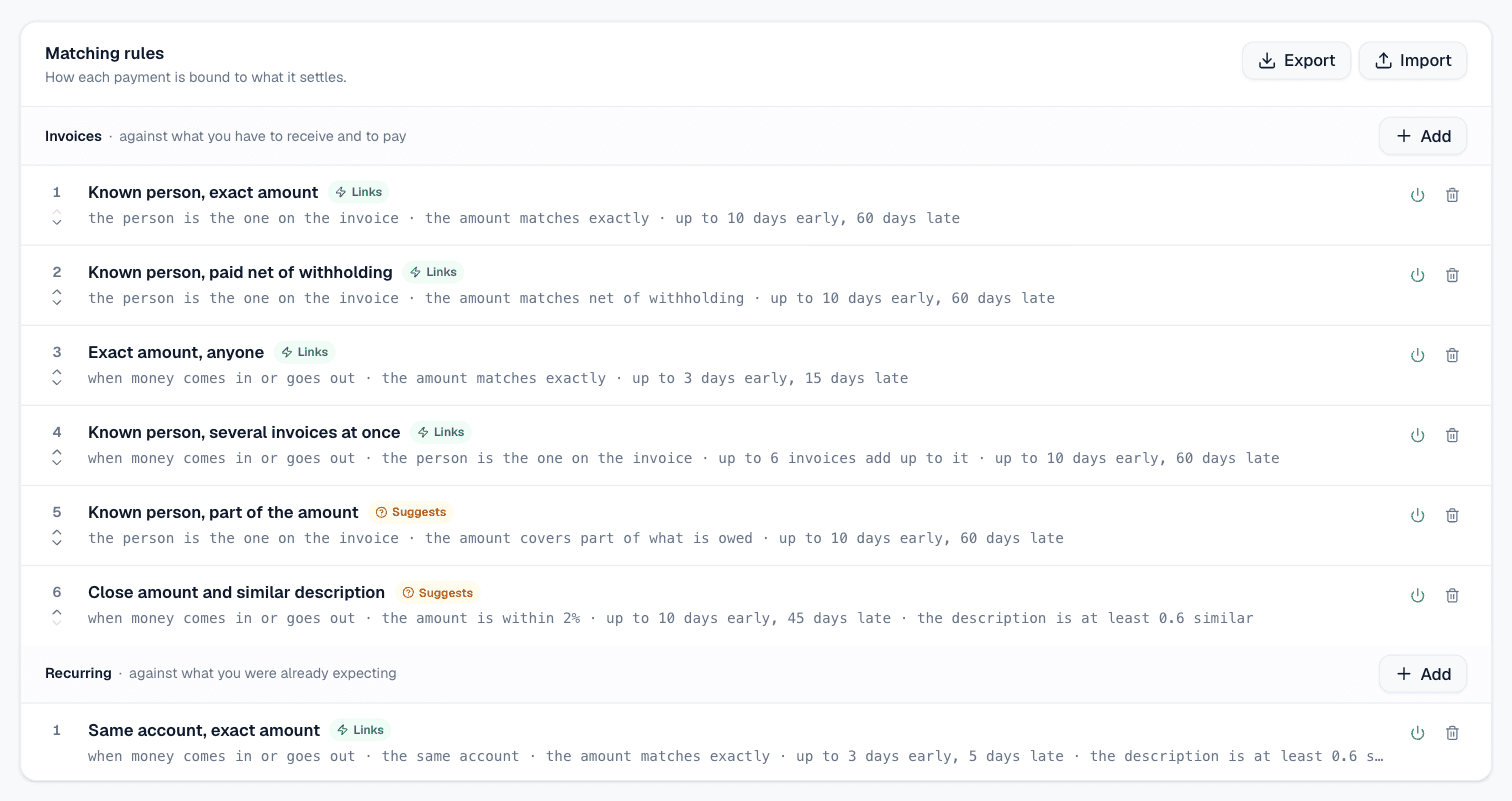
Securo ships with these for invoices, tried in this order:
| # | Rule | Outcome | When it fires |
|---|---|---|---|
| 1 | Known person, exact amount | Links | The payer is the client on the invoice and the amount matches what is owed exactly, up to 10 days early or 60 days late |
| 2 | Known person, paid net of withholding | Links | Same client, amount matches after withholding tax. Inert until withholding rates exist for your jurisdiction |
| 3 | Exact amount, anyone | Links | The amount matches one open invoice exactly, even from an unidentified payer, within 3 days early or 15 late |
| 4 | Known person, several invoices at once | Links | Same client, and up to 6 open invoices add up to the payment |
| 5 | Known person, part of the amount | Suggests | Same client, the payment covers part of what is owed |
| 6 | Close amount and similar description | Suggests | Amount within 2%, description at least 0.6 similar |
And one for recurring bills: Same account, exact amount, which links a transaction to a schedule on the same account when the amount matches exactly, within 3 days early or 5 late, and the description is similar.
Order is how you express a band
The first matching rule wins, so link under 2%, ask between 2% and 5% is one rule placed above another. Use the arrows on each row (Try this one earlier / Try this one later) to reorder, and the toggle to disable a rule without losing it.
Editing a shipped rule
Click a rule to change any of its thresholds. A rule you changed is marked Changed; Restore what we ship puts it back. Shipped rules are never copied into your workspace: an untouched rule keeps improving with new versions of Securo, and Securo stores only the difference you decided on.
Writing your own
Add opens the same editor for a new rule, in three steps:
- What this rule is: a name, and whether a match Links on its own or Suggests for you to confirm.
- Which money it looks at: leave everything empty and it looks at all of it, or narrow it to specific bank accounts, specific people, money coming in or going out, certain currencies (or only foreign ones), an amount range, and words the statement must or must not carry. Several words separated by commas mean any of them, so a business receiving through three acquirers writes one rule rather than three.
- When it counts as a match: who paid (anyone, or the person on the invoice), how close the amount must be (exactly what is owed, within a margin, net of withholding, part of what is owed, or several invoices added up), how far apart the dates may be, and how similar the description has to be.
Two details worth knowing. Amounts are compared against what is still owed, not the original total, which is what makes part payments work. And an invoice has two dates: late is counted from the due date, early from the day the invoice was written, so a client who pays the day after you invoice them is not "four weeks early".
You can also choose when a rule is trusted: when money comes in, when an invoice is issued (looking back at money already there), or both.
Deleting, exporting and importing
Any rule can be deleted, including the ones Securo ships. A deleted shipped rule is listed under the set by name so you can bring it back. Export downloads the whole set as a file; Import replaces the workspace's rules with the file's contents, including their order, which is how you carry a tuned set to another workspace or another server.
Cash Forecast
An open invoice is money you expect, so its unallocated balance is included in the dashboard's projected balance. The moment a payment is linked, the invoice's claim shrinks by that amount and the transaction carries the forecast alone, so the same money is never counted twice.
Tips
- Give your clients a payee and keep it on their invoices: known person is the strongest signal a rule can use, and it is what lets a partial payment be offered with confidence.
- If a bank statement identifies the payer in its own field rather than in the description (a Pix does), matching reads that field too. A rule that says "the statement says ACME" works against both.
- When the queue keeps asking the same kind of question, the answer is usually a rule: copy the shipped one that comes closest, widen its window or margin, and place it where you want it in the order.