
Workspaces
Keep separate financial spaces and share them with the people who need access, each with their own role.
A workspace holds a complete, independent set of financial data: its own accounts, transactions, categories, budgets, and goals. Your first workspace is created automatically at first launch, and you can create more whenever one pot of data shouldn't mix with another: household finances separate from a side project, or a space you manage for someone else.
Creating and Switching
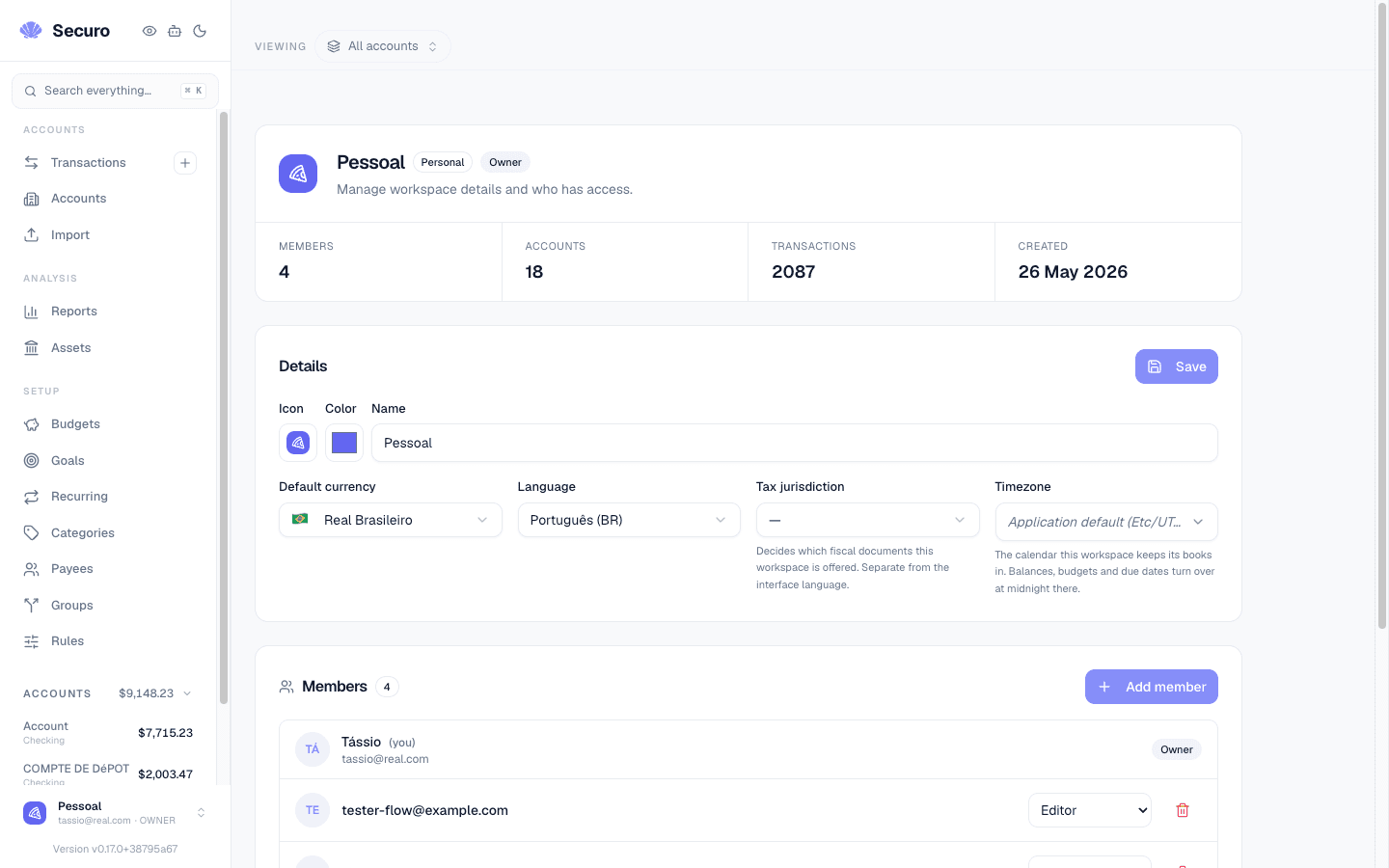
The workspace switcher in the sidebar shows all your workspaces and lets you jump between them; everything in the app always operates on the active one. Click New workspace to create another; each has its own name, icon, type, default currency, language, and tax jurisdiction.
The type is chosen once, at creation, and cannot be changed afterwards:
| Type | What it offers |
|---|---|
| Personal | Everything described in these docs except invoicing |
| Business | The same, plus Invoices (receivables and payables) and invoice payment matching |
The tax jurisdiction decides which fiscal documents the workspace is offered (CNPJ and CPF in Brazil, NIF in Portugal, EIN in the US, and so on) and, for India, an April to March financial year in reports. It is separate from the interface language.
A workspace can also keep its own timezone, set in its settings. It decides which day "today" is for that workspace's balances, budgets, due dates and scheduled work. It builds on the application-wide timezone an administrator sets (which by default follows the server); a workspace without one simply follows the instance, so one server can hold books that close in São Paulo and books that close in Tokyo.
A workspace you no longer use can be archived from its settings page: it disappears from the switcher but all data is preserved.
Sharing a Workspace
Open Workspace settings to invite people by email. If the email isn't registered yet, you can set an initial password and the account is created on the spot, handy for setting someone up in person.
Each member has a role:
| Role | What it allows |
|---|---|
| Owner | Full access: manage members, settings, and all data |
| Editor | Read and write all financial data |
| Viewer | Read-only access |
Removing a member revokes their access to the workspace but never deletes their user account.
Managed Workspaces
A workspace can also be operated by someone who isn't a regular member: an external manager with effective owner rights. The workspace shows an "Externally managed" note so it's always clear that arrangement exists. This suits any situation where you want someone you trust to keep the books in order while the workspace remains yours.
What Stays Separate
Data never leaks between workspaces: accounts, transactions, categories, rules, budgets, goals, bank connections, and reports are all scoped to the active workspace. Your user account, login credentials, and personal preferences are yours across all of them.