
Categories
Organize your spending with hierarchical category groups, custom icons, and colors.
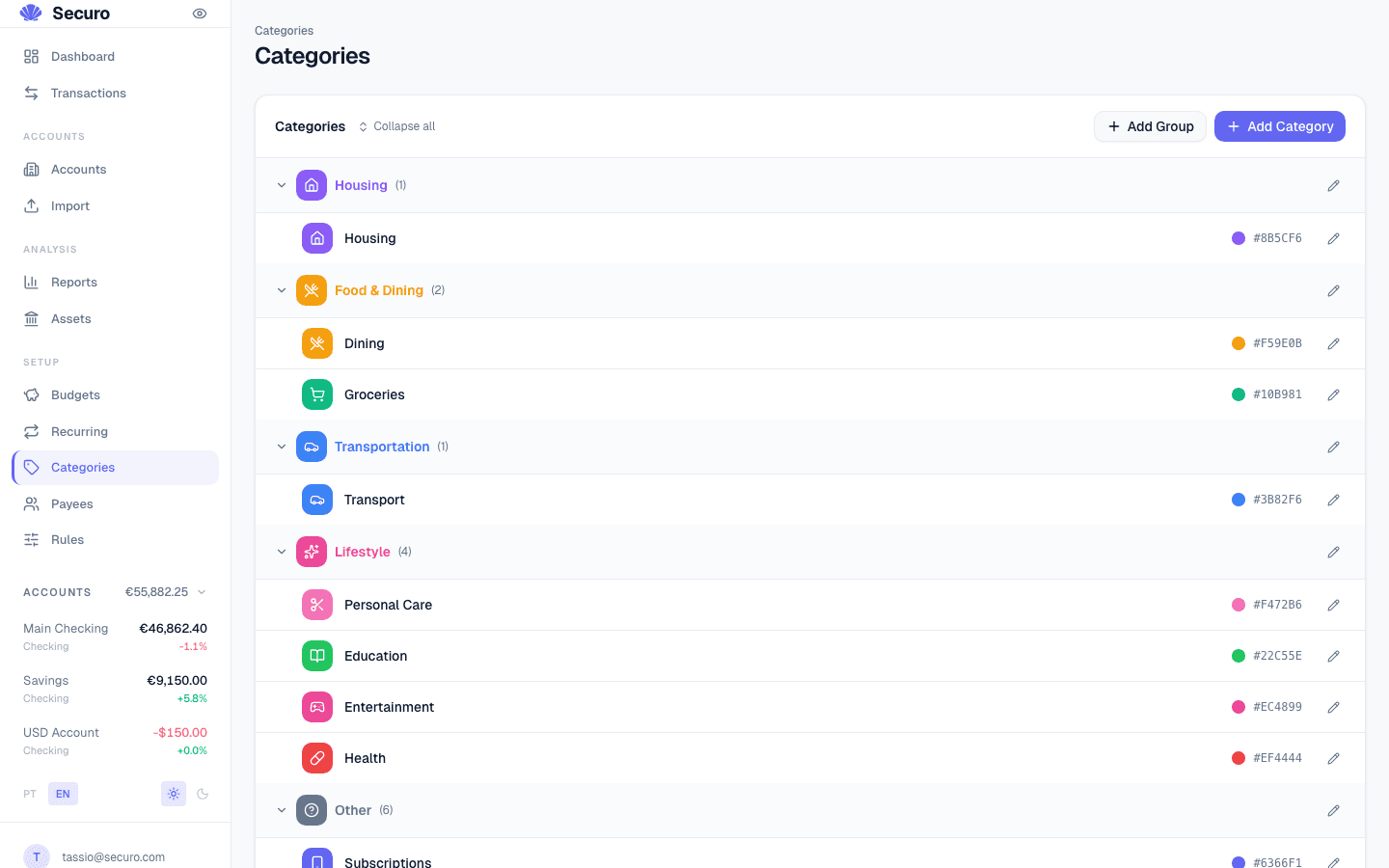
Categories are how Securo organizes your spending. Every transaction can be assigned to a category, and those categories power your budgets, reports, and dashboard widgets. Groups are optional: categories work on their own, and you can organize them into category groups whenever your list grows.
Default Categories
A fresh install seeds a set of ready-to-use categories covering the common areas, localized to your language: Housing, Food & Dining, Groceries, Transport, Health, Leisure, Subscriptions, Education, Shopping, Personal Care, Donations, Taxes & Fees, Transfers, Investments, Salary & Income, and Other. Rename, recolor, or delete any of them, they're a starting point, not a constraint. Deleting one that is still in use asks where to move its transactions, and the budgets follow the move.
A default category you never use can also be hidden instead of deleted: it leaves the pickers and stops being assigned by rules, while transactions, budgets and reports that already refer to it are untouched. If active rules assign that category, Securo offers to turn them off at the same time.
Category Groups
Groups are the optional top level: create them yourself and move categories inside to organize the list. Each group has its own icon and color and can be expanded or collapsed in the category list.
Individual Categories
Inside each group, you'll find specific categories. For example, the Food group might contain:
- Dining: Restaurants and dining out
- Groceries: Grocery stores and supermarkets
Each category has:
- A name
- An icon (from a large, searchable catalog) or an emoji: the picker has an Icons and an Emojis tab, and an emoji typed or pasted into its search box can be used directly with Use this emoji
- A color (hex code) for use in charts and visualizations
- An optional parent group
Two flags change how a category behaves in the numbers:
- Treat as transfer: transactions in this category are excluded from income and expense totals, like real transfers. The default Transfers and Investments categories ship with this on, so moving money to your brokerage never shows up as "spending"
- Ignored: the category's transactions stay visible but are left out of totals and reports
Creating a Category
- Go to Categories in the sidebar
- Click + Add Category
- Enter the category name
- Choose an icon and color
- Select the parent group
- Click Save
Creating a Category Group
- On the Categories page, click + Add Group
- Enter the group name
- Choose an icon
- Click Save
New categories can then be added inside this group.
Editing Categories
Click the pencil icon next to any category or group to edit its name, icon, color, or parent group. You can also reorganize categories by moving them between groups.
Use the Collapse All toggle at the top to quickly collapse or expand all groups.
How Categories Are Used
Categories flow through the entire application:
- Transactions: Each transaction is assigned to one category, or split across several
- Budgets: You set spending limits per category
- Dashboard: The spending chart breaks down expenses by category
- Reports: All analytics are grouped by category
- Rules: Automation rules can auto-assign categories based on transaction descriptions
Uncategorized transactions are highlighted on the dashboard so you're always aware of what needs attention.
Categories in Split Transactions
A category can hold a part of a split transaction or of a split recurring bill, and a few category actions take that into account:
- Deleting a category counts those parts as uses and moves them to the category you choose. When a split already has a part in that category, the two parts become one; a split left with a single category turns back into a plain transaction in it
- A category that holds a part can't be ignored or hidden: change those splits first
- A category that holds a part of a credit on a credit card can't be marked Treat as transfer, nor moved into a category that is, since the card bill could not leave out only that part